Back to Packages
Text Box
Remove margins, resize to fit text, swap text between two boxes and set the default text box, beside Office's own Text Box.
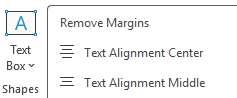
Remove margins, resize to fit text, swap text between two boxes and set the default text box, beside Office's own Text Box.
Every new text box starts in PowerPoint's plain style, and then you restyle it to match the deck. Set the style once, and every box you draw after that starts in it.
How to Use Set as Default Text Box
Note: The Text Box button is PowerPoint's own Insert Text Box, kept at hand in the Shapes group. The default is saved in the presentation, not for all of PowerPoint. On a shape that is not a text box, PowerPoint sets the default shape instead.
Whether a box grows with its text is buried in Format Shape. Here it is one click, and the menu shows how the selected box is set.
How to Use Resize Shape to Fit Text
Note: Works on one shape at a time.
Text that has to line up with a picture, a line or the edge of a grid never quite does, because every text box keeps a small margin inside. Remove it from all your boxes at once.
How to Use Remove Margins
All four margins of each shape become zero. One Undo puts them back.
Note: Table cells are not changed.
Two boxes in the wrong order means cutting and pasting text back and forth, and fixing the formatting afterwards. Swap Text exchanges it in one click, and leaves the boxes where they are.
How to Use Swap Text
Each shape now holds the other's text, with its own formatting: bold words, fonts, colors, bullets and indents. The shapes keep their position, size and fill. One Undo swaps them back.
Note: Links, highlighting and text effects stay behind. Your clipboard is not touched.
PowerPoint only lets you set the space between paragraphs in the Paragraph dialog. These two buttons step it up and down from the menu.
How to Use Space before Paragraph
Each click adds or removes 6 pt, or half a line where the spacing is set in lines. It never goes below zero.
Note: PowerPoint ignores the space before the first paragraph of a box, so when only first paragraphs are selected, such as a one-line title, nothing changes and a message says so. To move that text down, use the top margin or Text Alignment Middle or Bottom.
Left, center and right are on the Home tab, but top, middle and bottom hide in a gallery. Here are all six, next to the text box tools.
How to Use Text Alignment
With the cursor in a table cell, top, middle and bottom work on that cell.