Back to Packages
Table Utilities
Style one table and every table you insert after it comes out the same. Plus tools for table structure and formatting.
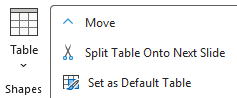
Style one table and every table you insert after it comes out the same. Plus tools for table structure and formatting.
Style one table the way you want it, and every table you insert after it comes out the same, ready to type in.
How to Use Set as Default Table
Note: The default is kept in the presentation, so it travels with the file. Tables inserted any other way keep Office's own look.
Reorder a table without retyping it: PowerPoint has no way to move a row or a column, so this adds one.
How to Use Move
Note: The heading row, total row and first or last column stay put while the table style formats them on their own (turn the option off in Table Design to move them), and rows or columns with merged cells cannot be moved.
A table that runs off the slide becomes two slides in one click, with the heading row repeated on the second.
How to Use Split Table Onto Next Slide
Note: The title is copied as it is. Cells merged across the split row stop the split.