Back to Packages
Table of Contents
Turn a styled table into a table of contents built from your sections and slide titles, with page numbers and a link on every row.
Turn a styled table into a table of contents built from your sections and slide titles, with page numbers and a link on every row.
Turn a table you have styled into a Table of Contents built from your sections and slide titles, with page numbers and a link on every row.
How to Use Table of Contents
To make a table a Table of Contents, or a plain table again, without rebuilding it, select it and use Is Selection a Table of Contents? in the menu. Has Header Row in the menu shows whether the tables have a header row; it is read from the source table, so it cannot be clicked.
Note: The table does not update by itself — refresh it with Table of Contents once the slides change.
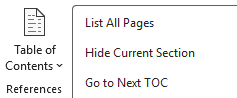
Choose how much of the deck a Table of Contents lists: a one-line overview of the sections, the full index, or only the pages of the section it sits in.
How to Use Listing
Select a Table of Contents first to set the mode for that table only — a front overview and a divider table inside a section can each keep their own. With nothing selected, the mode applies to the whole deck, including a table you have not created yet.
Note: A deck with no sections can only List All Pages; the other two are greyed out.
Leave a slide or a whole section out of the Table of Contents, or number a section's slides, without deleting or moving anything.
How to Use Show / Hide
Numbered in Contents on a section header's right-click menu does the same as Number Current Section.
Note: The section marks are kept in the section's name, as .hidden and .numbered. A hidden section is also left out of the Sections Navigation of Auto Field.
Jump between the Tables of Contents in a long deck without scrolling for them.
How to Use Go to Next TOC
Note: The first Table of Contents is the reference: its styles are the template every other one takes on the next refresh.