Back to Packages
Quick Guides
Bulk-create and delete layout guides in a single click to build flawless presentation grids instantly.
Bulk-create and delete layout guides in a single click to build flawless presentation grids instantly.
MotivationPerfect alignment is the secret to a professional presentation, but managing layout guides one by one can feel like a chore.
Our Guide Tools eliminate the friction. With powerful bulk creation and deletion capabilities, you get the ultimate flexibility to structure your slides instantly — so you can spend less time positioning and more time pitching.
PowerPoint's own guides, gathered onto one button: show them, hide them, and drop a new one on the slide without going to the View tab for it.
How to Use Guides
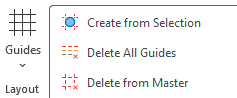
Guides that match what is already on the slide. Select the shapes and get a guide along each outer edge of the selection — left, right, top and bottom — so everything you place next lines up with it.
How to Use Create from Selection
Note: The guides go around the whole selection, not around each shape, and none is added where a guide already sits. Add to Slide appears in Normal view only, since slide guides belong to the presentation rather than to a master.
Clear the guides out again — all of them at once, or only the ones on the level you mean.
How to Use Delete Guides
What each one removes:
Note: Delete from Slide(s) is hidden in master views, where slide guides do not apply.