Back to Packages
Import PDF Pages
Put every page of a PDF onto your slides in one go, instead of taking screenshots and placing them one by one.
Put every page of a PDF onto your slides in one go, instead of taking screenshots and placing them one by one.
A report built in PowerPoint often has to carry its source documents (a specification, a survey, an official extract) in an appendix at the end. PDF to Slides puts every page of the PDF onto your report's slides in one go, instead of taking screenshots and placing them one by one.
How to Use PDF to Slides
Note: The first pages go onto the current slide; each further slide is added after it, with the same layout, so the appendix keeps your template. The pages are fitted to the content area — the space your template's guides mark around the middle of the slide, or the whole slide when there are none. A password-protected PDF cannot be opened.
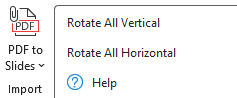
Scanned pages often come in on their side. Turn them upright as they are imported, rather than rotating each picture afterwards.
How to Use Rotation Options
Note: Pages are turned a quarter turn counterclockwise, so use these for pages whose content lies on its side. On an upright page they turn the text sideways. The choice stays on until you click it again or close PowerPoint.