Back to Packages
Excel Objects Import
Bring a range or chart from Excel onto the slide in one click, with no copying and pasting. It stays linked to the workbook.
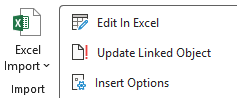
Bring a range or chart from Excel onto the slide in one click, with no copying and pasting. It stays linked to the workbook.
Bring a table or chart from Excel onto the slide in one click, with no copying and pasting, and it stays linked to the workbook it came from.
How to Use Excel Import
A range comes in as a PowerPoint table and a chart as a PowerPoint chart. If you selected a placeholder, the object takes its place and width. If you selected nothing, the object goes in the middle of the slide. Each object remembers its source workbook, sheet and range, so you can open it in Excel or update it later.
If a range has more than 35 rows, you are asked how many heading rows it has. The table is then split across as many slides as it needs, and the heading rows are repeated on each slide.
Note: Save the workbook first. Ranges and charts cannot be imported from an unsaved or read-only workbook. Workbooks on a shared drive or in OneDrive work best: an object linked to a file on your own disk can be edited only on that PC.
When the numbers change, go straight from the slide to the Excel source, edit it, and bring the new version back into the same place.
How to Use Edit In Excel and Update Linked Object
The object is imported again from its source and replaces the old one, at the same position and size.
Note: If the source workbook has been moved or renamed, the Excel Source File Information dialog opens so you can point the object at the new file. If a source table now has a different number of rows or columns, you are warned before the update, because the new table may differ in size and format.
See where an imported table or chart came from, and point it at a new file after the workbook has moved.
How to Use Excel Source File Information
Note: Changing the location updates every object in the presentation that was linked to the old file, not only the selected one.
Choose whether Excel tables and charts come in as live PowerPoint objects or as pictures.
How to Use Insert Options
The options apply to every import and update from then on.