Back to Packages
Copy Object Props
Format Painter copies everything. Pick a reference object and paste only what you want: colors, corner radius, size or position.
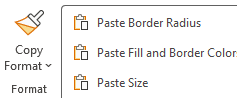
Format Painter copies everything. Pick a reference object and paste only what you want: colors, corner radius, size or position.
MotivationPowerPoint's Format Painter is all-or-nothing: it copies an object's entire look in one shot and can't touch position or size. This package lets you pick a reference object once and then paste only the properties you want — fill and border colors, corner radius, or even size and position — onto any other objects. That selective control keeps slides consistent with far less manual cleanup than the built-in tool allows.
PowerPoint's Format Painter copies a shape's whole look in one go, and you cannot ask it for less. This works the other way round: pick one shape as the reference, then paste only the property you want onto as many shapes as you like.
How to Use Copy Format
Note: The reference stays set until you pick another one or close PowerPoint, so you can keep pasting onto new shapes as you work. Pick the reference first — the paste commands tell you to if you have not.
The whole look of the reference — fill, outline, effects and text formatting — onto every shape you have selected, leaving each one where it is and the size it is.
How to Use Paste All (Except Position/Size)
Note: Corner rounding is not carried over — use Paste Border Radius for that. If the reference is among the shapes you selected, it is skipped.
Give a set of rounded rectangles exactly the same corner curve as the one you picked, instead of dragging each yellow handle by eye.
How to Use Paste Border Radius
Note: This is for rounded rectangles only. Anything else in the selection is left alone, and you get one message at the end saying how many were skipped. The reference has to be a rounded rectangle too. Corner rounding is the one thing Paste All does not carry over, which is why it has its own command.
Just the colours. The reference's fill and its outline colour, with its size, effects and text left exactly as they are.
How to Use Paste Fill and Border Colors
Note: A theme colour is pasted as a theme colour, so the shapes you recolour still follow the presentation's theme. A reference with no fill, or no outline, clears them on the shapes you paste onto.
The reference's text margins — the gap it keeps between its text and its own edges — on all four sides, copied to the other shapes.
How to Use Paste Margins
Note: Only shapes that can hold text have margins; anything else in the selection is passed over. If the reference has no text frame of its own, it says so and nothing is changed.
Make shapes exactly as big as the reference — and, when you want it, put them exactly where it is too.
How to Use Paste Size
Note: Paste Size and Position puts every selected shape exactly on top of the reference, so it is for swapping one element for another rather than for a whole row at once.