Back to Packages
Auto Field
Layout placeholders that fill themselves, such as a section strip that stays right when sections are renamed or moved.
Layout placeholders that fill themselves, such as a section strip that stays right when sections are renamed or moved.
A divider, a header or a running label often repeats the name of the section the slide belongs to. Let the layout write it, so it is always the right one.
How to Use Slide Section Name
Note: One placeholder holds one kind of field. Checking Slide Section Name on a placeholder marked Sections Navigation replaces that mark. Click it again to unmark it, and its slides are emptied.
Fields keep up with the deck on their own: a new, duplicated or pasted slide is filled as it arrives, a slide whose layout was switched or reset is filled when you move on from it, and the whole deck is checked when you save. After you rename, add or reorder sections, bring every slide up to date at once.
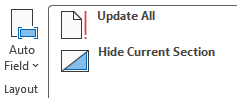
How to Use Update All
Every auto field in the presentation is refreshed.
Note: A field is rewritten each time, so text typed into one does not stay.
Not every section belongs in the navigation: an appendix, a backup, a cover. Leave one out without renaming it.
How to Use Hide Current Section
The section disappears from the Sections Navigation and from the Contents. When the current section is hidden, the same item reads Show Current Section and puts it back.
Note: You can also right-click a section header and choose Hide Section or Show Section.