Back to Packages
Sync Zoom
Give every sheet in a workbook the same zoom, step back to the previous zoom, and fit the sheet to the window.
Give every sheet in a workbook the same zoom, step back to the previous zoom, and fit the sheet to the window.
MotivationExcel keeps the zoom on each sheet separately, which sounds reasonable until you are in a file eleven people have touched. One tab opens at 100%, the next at 85%, the one after at 130% — and every move between them is a jolt that costs a second of re-reading before you can take anything in.
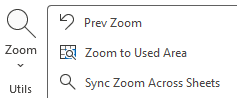
Sync Zoom puts the three commands that fix it in one menu. Sync Zoom Across Sheets settles the whole workbook on the zoom you are looking at. Zoom to Used Area fits a sheet's actual contents to the window without your having to select them first. And Prev Zoom takes you back to the zoom you had a moment ago — click it again and you return, so you can flick between the overview and the detail instead of hunting for the right percentage twice.
Excel's own 100% and Zoom to Selection sit in the same menu, so once you have gone there for one of them you have gone there for all of them.
Set a workbook's zoom once and have every sheet agree. Excel keeps zoom per sheet, so a file built by several people reads at 100% on one tab, 85% on the next and 130% on the one after — and every switch between them is a jolt.
How to Use Sync Zoom Across Sheets
Note: Every visible worksheet takes the zoom. Hidden sheets and chart sheets are left alone — a chart sheet's zoom means something different, and a hidden sheet is not one you were looking at.
Fit the whole sheet on screen in one click. Excel's own Zoom to Selection needs you to select the right thing first; this works out what the sheet actually contains and fits that.
How to Use Zoom to Used Area
Your selection is left exactly as it was — the cell you were on is still the cell you are on.
Note: It does nothing on a chart sheet, which has no used range to fit. The menu also carries Excel's own 100% and Zoom to Selection, so the zoom commands you already know are in the same place.
Zooming out to see the shape of a sheet is easy; getting back to where you were reading is fiddly. Prev Zoom returns the sheet to the zoom it had a moment ago, and clicking it again takes you back — so you can flick between the overview and the detail.
How to Use Prev Zoom
Note: It remembers one step, per sheet, for this Excel session — "previous" means the zoom before the current one, not a whole history. Moving to another sheet or workbook clears it, because a zoom belongs to the sheet you set it on. Excel raises no event when the zoom changes, so the previous value is noticed as you work rather than watched continuously — which is why a change made with the status-bar slider is still undone correctly.