Back to Packages
Styles
Table styles that make a raw table presentable, the cell styles you use in one menu, and align, border and decimal controls beside them.
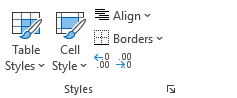
Table styles that make a raw table presentable, the cell styles you use in one menu, and align, border and decimal controls beside them.
MotivationExcel's own table styles are built for lists: banded rows, filter buttons, no idea what a section title, a subtotal or a total line is. And its Cell Styles gallery is long before you have added one of your own, so the styles you actually use are the hardest to find in it. Between the two, a table of figures ends up formatted by hand — fills, fonts, number formats, borders, alignment — which takes minutes per table and comes out slightly different every time, and differently again for every person on the team.
Styles is one group for all of it. Table Styles is a short menu of the rows a real table is made of — a title, column headings, a section title, data rows, subtotals, a total — ready the moment you first use them: name the table once and each style stretches to its width by itself, so you never select more than the first cell of a row. Cell Style keeps the handful of cell styles you reach for, applies one with a click, and resets a selection back to its style without stripping the borders. Align, Borders and the decimal buttons sit beside them, so the formatting you reach for while building a table is in one place rather than spread across the Home tab.
Because every style here is a real Excel cell style, adjusting one restyles every table in the workbook that uses it — which is how the seeded look becomes a firm's own standard.
The rows a data table is actually made of — a title, column headings, section titles, data rows, subtotals, a total — each ready to use the moment you first pick it. A raw block of figures becomes a presentable table without a single style being configured first.
How to Use Table Styles
Data rows bring thousands separators, negatives in brackets and zeros as dashes, all lined up a bracket's width in from the right so labels and figures agree. Headings line up with them, and a year stays a number — 2026, not 2,026.
Note: Section Title is the one style that takes the selection exactly as given, instead of widening to the table — so a section row can carry a label in one style and subtotal figures in another. Applying a data style keeps the decimals a cell already shows, so a block you nudged with Increase Decimal survives being restyled later.
Excel's Cell Styles gallery is long before you have added one of your own, so the handful you actually use are the hardest to find in it. Keep those few in one short menu, and get back the two commands the gallery has no room for.
How to Use Cell Style
Two commands do the clearing up:
Note: The list is per account and survives a restart, but a style entry only applies in a workbook that actually has that cell style — point it at one in a workbook without it and you are told so, rather than having a style invented for you. Reset Selection Styles greys out when the selection is not a range, and walks only the used range, so selecting whole columns is still instant.
The seeded look is a starting point, not a decision. Every style is a real Excel cell style, so changing one restyles every table in the workbook that uses it — which is how a firm turns the defaults into its own standard.
How to Use Edit a Table Style
Ctrl+click the Table Styles button instead and you get the same form for Table Area — the frame round the whole table — which is borders only.
Note: A style is seeded only when it is first created in a workbook, so once you have tuned one it is never overwritten. Borders belong to the extensions, never to the Excel style — the two layers can't draw conflicting edges. Colours are theme colours, so a table follows the workbook's theme.
The formatting you reach for while a table is being built, next to the styles rather than scattered across the Home tab: alignment, borders drawn in the table's own colour, and the decimal buttons.
How to Use Align and Borders
Note: Each border command is a single undo step. Align and Borders grey out when the selection is not a range — on a chart, say — as Excel's own do.