Back to Packages
Send Sheets
Export sheets to one PDF or to CSV files — the selected ones, or those picked on an index sheet
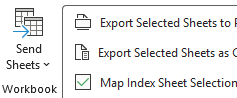
Export sheets to one PDF or to CSV files — the selected ones, or those picked on an index sheet
MotivationSending part of a workbook usually means copying sheets into a new file, deleting what should not go, and saving it again as PDF. Send Sheets does it in one step: select the sheets and get one PDF of them, or a CSV file for each.
In a large databook, the list of what goes out is often already on the index sheet — a yes / no column beside the sheet names. Map that column once, tick the sheets on the index, and the exports take exactly those, in the index's order, with each file named after the sheet and its description.
One PDF of the sheets you need, without copying them into a new workbook first.
How to Use Export Selected Sheets to PDF
Each sheet prints with its own page setup and print area. Sheets picked on an index come out in the index's order.
Note: With nothing selected, the active sheet is exported. A hidden sheet in the selection is asked about first: export it as well, or leave it out.
A CSV file for each sheet you need, in one go.
How to Use Export Selected Sheets as CSV
Each file is named after its sheet and, when the index gives one, its description — 1 - Balance sheet.csv — and saved as UTF-8. Your workbook stays as it is.
Note: Needs Microsoft 365, Excel 2019 or later, or Excel 2016 updated to version 1611 or later. Files already in the folder are replaced only after you confirm.
Pick the sheets to export on your own index sheet: a yes / no column beside the sheet names.
How to Use Map Index Sheet Selection
Now mark sheets with yes, x or ✓ in the selection column, and while you are on the index, the exports take exactly those. A link in the name column counts for the sheet it goes to, so sheets named 1, 2, 3 are still found.
Note: Selected sheet tabs take priority over the index. To change or remove the mapping, run Map Index Sheet Selection… again — it opens on the saved mapping, with Remove Mapping.