Back to Packages
Find & Select
Excel's Find plus three ways to select a block of cells in one click, so you can change them all at once.
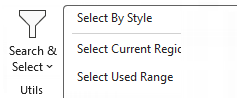
Excel's Find plus three ways to select a block of cells in one click, so you can change them all at once.
MotivationOften, you may need to find and select cells to change them at once — a style may no longer be relevant.
Find & Select helps you to select cells (or areas) that need your attention. With a single selection, you can apply changes in one go.
One button for the two things you do when you are hunting for cells: Excel's own Find, and three ways to select a block of them in one click.
How to Use Find & Select
Need to see where a style is still used? Jump straight to a cell carrying it, anywhere in the workbook.
How to Use Select By Style
Note: It goes to the first match and stops, searching the visible sheets in order. The name has to match the style exactly as Excel spells it; if nothing matches, it tells you so.
Select the whole block around the cell you are on, out to the first empty row and column on every side.
How to Use Select Current Region
Note: Empty rows and columns are the edges, so a table beyond one of them is a block of its own and stays unselected.
Select everything the sheet uses, from its first used cell to its last, in one click.
How to Use Select Used Range
Note: The used range can reach well past the data you can see — a cell that was once filled in, or merely formatted, keeps it stretched that far.