Back to Packages
Number Presets
Keep your own number formats in one short menu, and apply them without changing the rest of the cell's formatting.
Keep your own number formats in one short menu, and apply them without changing the rest of the cell's formatting.
MotivationApplying a cell style to get a number format is a blunt instrument: it brings the font, the colour, the borders and the alignment with it, and undoes the formatting you had. And Excel's own styles list is long before you have added one of your own.
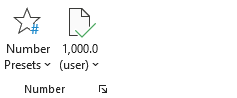
Number Presets is a short menu of the formats you actually use, each labelled with a sample of what your cells will look like. Picking one changes the number format and nothing else. Add your own from any cell, Ctrl+click to edit one — and switch the whole workbook between
1,000.0and1 000,0when it is read somewhere else.
Your own number formats, one click away — and applying one changes only how the numbers read. Fonts, colours, borders and alignment stay as they were, which is what Excel's cell styles cannot promise.
How to Use Number Presets
Entries are grouped by what they are: numbers, currencies, percents, dates, then text.
Note: 12,333.* is the thousands format that keeps the decimals already in your cells, rather than forcing a fixed number of places. The small arrow in the corner of the Number group opens Excel's Format Cells → Number, as on the Home tab.
The menu is your list, not a fixed one. Build a format in Excel's own dialog, then capture it here — or type the code straight in, and watch the preview before you commit to it.
How to Use Add Number Format
To change one you already have, Ctrl+click it in the menu: the same dialog opens with the code filled in and a Remove button beside it.
Note: The code is the invariant one, as in Format Cells → Custom — #,##0.00, dd.mm.yyyy — so a list keeps working after a notation or Windows-locale change. Excel judges a code when it is first applied, not when it is added.
A workbook written for one audience rarely reads right for another: 1,000.0 here is 1 000,0 there. Switch the separators for the workbook you are in, without touching Windows or Excel's options.
How to Use Number Notation
The notation you pick is saved on the workbook. Turn on Apply Selected Notation on Open and it is restored silently next time the file is opened; leave it off and you are asked first, only when it differs from what Excel is currently using.
Note: System Notation always comes first in the list and cannot be edited or removed — it follows Windows by definition.