Back to Packages
Paste Link
Attach a copied URL to a cell without changing its content, copy a selection's links out, and remove links while keeping the cells.
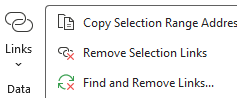
Attach a copied URL to a cell without changing its content, copy a selection's links out, and remove links while keeping the cells.
MotivationA number in a spreadsheet rarely explains itself. A price came from a supplier's page, a figure from a report, a part number from a catalogue — and a month later nobody remembers which.
Paste Link puts all of that on one menu. Attach the source to a cell and it keeps the number, formula or text it already holds. Copy the links back out, one per line. And when a workbook has to go out clean, take the links off the cells — or out of the whole file, workbook references included — with the counts shown before anything goes.
A cell holding a price, a part number or a name usually came from somewhere. Paste over Data attaches that address to the cell, without disturbing what the cell already shows.
How to Use Paste over Data
The cell keeps its number, formula or text and becomes a link to that address. An empty cell shows the URL itself, since it has nothing else to show.
Note: One cell at a time, and the clipboard has to hold text starting with http — anything else is refused. Undo puts the cell back.
Gets the addresses back out of the cells — to open one, to check it, or to attach it somewhere else — without clicking a link and losing your place in the sheet.
How to Use Copy Selection Hyperlink(s)
They land on the clipboard one per line, so they paste down a column, one link per row — and a single one is ready for Paste over Data.
Note: A link that points inside the workbook copies its place instead (Sheet2!A1). A selection with no links at all tells you so.
Takes the links out of the cells you picked and leaves everything else alone — the numbers, the formats, the fills and the borders all stay exactly as they were.
How to Use Remove Selection Links
It removes both kinds of link: hyperlinks, and formulas that read from another workbook, which are replaced by the values they were showing. A message tells you what went.
Note: No confirmation — the scope is what you just selected, and one Ctrl+Z puts it back. Excel's own way of deleting a hyperlink resets the cell to the Normal style, losing its number format, fill and borders; this does not.
The same cleanup over a whole sheet or a whole workbook — and it counts what it found before it takes anything, so you are never guessing at the scale of it.
How to Use Find and Remove Links
Workbook plus External only is the way to cut a file loose from the workbooks it reads from, names and charts included.
Note: This one cannot be undone, which is why the dialog shows you the counts first — Remove stays greyed out when there is nothing to take. Afterwards a message names anything that refused, such as an array formula, which Excel will not let you change in part.
Pointing someone — or an AI chat — at a block of cells means typing out the sheet name and the address by hand. Copy it in one click instead.
How to Use Copy Selection Range Address
Materials!B4:E7, the sheet name and the address together.Note: It copies the address only, not the cells' contents. With something other than cells selected, such as a chart, it asks you to select a range.