Back to Packages
My Functions
Your own formulas wrapped around the numbers you select — divide, round, or anything you write
Your own formulas wrapped around the numbers you select — divide, round, or anything you write
MotivationDividing a column by a thousand, or rounding it to one decimal, is the same small edit every time: write the formula once, then copy it down, across, and into the next sheet — and do it again next month. Excel has nowhere to keep a formula you use constantly, only the cells you have already written it into.
My Functions is that place. A function is a name and a formula written around
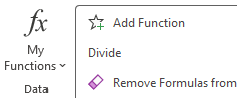
{cell}— the cell's own content — so={cell}/{divisor}divides whatever is there, constant or formula alike, and brackets it where the arithmetic needs it. Anything else in braces is asked for when you apply the function, and offered again next time. Nest functions to do several things in one pass, Ctrl+click an entry to change it, and reach for Remove Formulas from Selection when you want the numbers and not the workings.
The formulas you keep writing around other people's numbers, under names you chose. Pick one and every number in the selection is wrapped — the text, the labels and the blanks are left exactly as they were.
How to Use My Functions
Only the numbers are touched — constants, and formulas that return a number. A cell that already holds a formula is bracketed where it needs to be, so =A1+A2 divided by a thousand becomes =(A1+A2)/1000 and not =A1+A2/1000. The whole selection is one undo step, named after the function.
Note: Applying a function twice nests it twice — ROUND(ROUND(…)). There is nothing to unwrap with; use Ctrl+Z. If the selection holds no numbers at all, you are told so and nothing changes.
The menu is your list. A function is a name and a formula written around {cell} — the cell's own content — so one entry covers every cell you ever point it at.
How to Use Add Function
{cell}: ={cell}/{divisor}, =ROUND({cell},{decimals}), or both nested at once, =ROUND({cell}/{divisor},{decimals}).=A1+A2 would become, brackets and all; Asks for lists the parameters, or says nothing — applies at once.Any {name} other than {cell} is a parameter, asked for each time you apply the function and remembered afterwards. Type a number, text in quotes, or a reference such as $B$1 to keep the value live.
To change one you already have, Ctrl+click it in the menu: the same dialog opens with its name and formula filled in, and a Remove button beside OK.
Note: Formulas are written in Excel's invariant syntax — English function names, a comma between arguments — so a list keeps working whatever your Windows locale is. A parameter you type as 0,5 is converted for you. The formula is not checked when you save it: Excel judges it the first time you apply it, and the message names the function to Ctrl+click. The list holds up to 20 functions.
Before a sheet leaves your hands, the workings usually should not go with it. Replace the formulas in what you selected with the values they are showing, and leave everything else alone.
How to Use Remove Formulas from Selection
Number formats are kept, so the cells read exactly as they did a moment before. The whole range is one undo step, named Remove Formulas from Selection.
Note: It works on the selection only. To do the same to every sheet in the file at once, use Book Cleanup → Clear Formulas.